
Android may ask an extra question when you open the RR9 Game installer: should this browser or file manager be allowed to install applications? That prompt is part of handling an APK obtained outside Google Play. Read it before granting permission. The checks below cover the file, the phone and the messages you may encounter, so that an installation problem does not turn into a series of downloads from unfamiliar sites.
Work through the preparation checks first, then follow the installer on your own device. Menu names differ between Android versions, so the relevant setting matters more than an exact sequence of taps. Nothing here verifies a particular RR9 file or guarantees that a downloaded package is trustworthy.
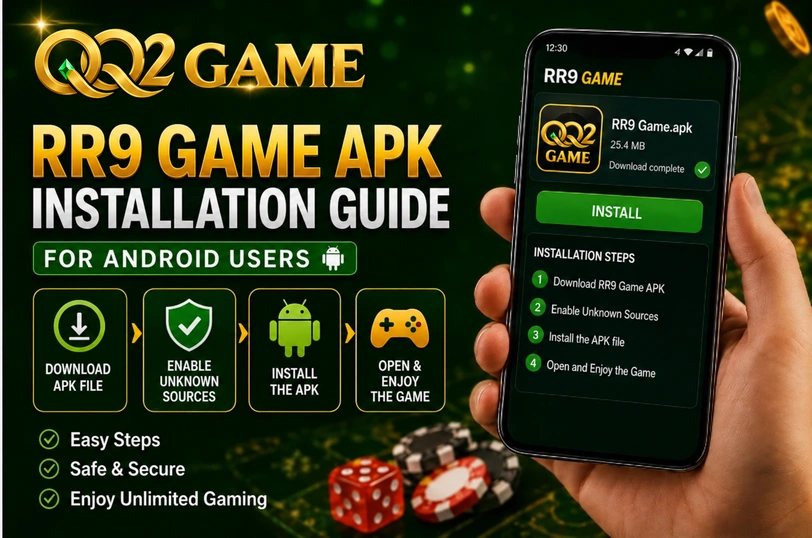
How an APK differs from an installed app
The APK is the package Android reads to install an application. Saving that package in Downloads does not install it. Opening it starts Android’s installer, which checks whether the package can be added to the device or used to update an existing application.
Check who supplied the file, which version it claims to contain and whether that version suits your phone. A file delivered through an unsolicited message or a pop-up deserves particular scrutiny. The name alone cannot establish authenticity; misleading files can use the same name as a legitimate app.
Already have RR9 installed? Check the update requirements before replacing it. Preserve any important information and ensure you can recover your account. Removing an existing application can erase locally stored data, so it should not be your first response to an unexplained installation error.
| Game | RR9 Game |
| Size | 8mb |
| Save the installation package | Check the publisher and origin |
| Review the source permission | Keep device protections active |
| Android Version | Compare the device requirements |
Prepare the phone before opening the file
A few checks before installation can reveal a storage or compatibility problem while it is still easy to resolve. They also help you identify the package you actually intended to open.
Review these items on your device:
- Leave enough free internal storage for installation.
- Confirm where the package came from and who published it.
- Wait until the file transfer has finished completely.
- Apply available Android and security updates where appropriate.
- Read each permission request before granting access.
- Delete failed transfers and suspicious copies from Downloads.
- Compare the package requirements with your Android version.
Samsung, Xiaomi and other manufacturers can label the same Android setting differently. If an instruction does not match your screen, use Settings search rather than guessing at an unrelated security option.
From the saved file to the first launch
Once the package and device checks are complete, use Android’s installer to continue. Keep track of any warning instead of tapping through it automatically.
1. Find the completed transfer
Save the RR9 Game APK only after checking its source. When the transfer ends, open Files, Downloads or your phone’s equivalent file manager. You should be able to identify the package you just obtained.
If it is missing, check the browser’s download history and the destination folder. Searching by file name can help distinguish the latest copy from an older attempt.
Look at the full name and extension. Android packages use .apk, but that suffix alone does not prove that a file is authentic or safe to open.
2. Read the source-permission prompt
Android can restrict installations initiated by a browser or file manager until you explicitly allow that source.
If that restriction appears, read the message and open its relevant settings only if you have verified the file. The control is commonly labelled Install unknown apps, although the wording and location vary across devices.
Permission applies to the application opening the package, such as Files or your browser. Check that you are reviewing the correct application rather than granting access to a different downloader.
Installing one package should not require switching off every Android security protection. Investigate requests to do that before proceeding.
3. Review the installer screen
Return to the folder containing the completed APK and select that file.
Check the application information Android presents. Permission requests may also appear when you first use a feature. If the app identity or requested access does not fit what you expected, stop and review the source before approving anything further.
Continue with the displayed installation controls only when those checks are satisfactory.
4. Let Android finish the operation
The wait depends on the package and your phone. There is no confirmed RR9 installation time that applies to every device.
Repeated taps will not help an installer that is already running. Wait for Android’s result, then choose whether to launch the application or close the installer. Record any error message if it cannot finish.
An error is a reason to investigate the package or device, not a reason to fetch several more copies from arbitrary websites. Start with the specific message.
5. Look over the first session
Launch the installed application and see whether its opening screen loads as expected.
Check the following before continuing:
- Does the application reach its normal opening screen?
- Are menus and other interface elements readable?
- Do unexpected windows or redirects interrupt the screen?
- Does a permission request have an understandable purpose?
- Is the app requesting information you did not expect?
Close the application if its behaviour raises concerns. Review its origin and permissions before supplying further information or accepting another installation request.
Match an installation failure to its likely cause
A completed download can still be incompatible or damaged. An unsuccessful installation does not, by itself, show that there is a hardware fault with your phone.
Android reports that the app was not installed
This broad message can cover insufficient space, an unsupported Android version, a broken package or a conflict with the installed copy. The words alone do not identify which condition applies, so check those possibilities separately.
Start with storage and the published requirements. Then review any existing RR9 installation and whether the new package is intended as its update. Do not uninstall it until you understand the effect on local data and account access.
The package is incomplete or invalid
An interrupted transfer can leave a file that looks present but cannot be installed. Remove that incomplete copy and obtain a complete package from a verified source if an appropriate version is available.
Do not repeatedly submit the same invalid file to the installer and expect a different result.
The source lacks installation permission
Review Install unknown apps for the browser or file manager that actually opened the package. A permission granted to another application will not necessarily apply.
Settings search is useful when your phone’s menu differs from a guide. Distinguish a source-permission restriction from a warning that the file itself may be harmful; they call for different checks.
Internal storage is nearly full
Installation needs working space as well as room for the saved APK. Review storage usage and remove only files or applications you no longer need before another attempt.
Keep some space available afterwards too, rather than filling the device to its limit again.
Assess the file without bypassing protections
Manual installation is a distribution method, not a safety rating. An unverified package may contain unwanted software even if it installs successfully and shows the expected app name. The file’s origin remains an essential check.
Use the device’s available security checks and read their results. Google Play Protect may flag potentially harmful applications. Reviewing permissions adds useful information, but neither a scan nor a familiar interface establishes complete safety.
The practical stopping point is simple: leave a file uninstalled when you cannot establish a trustworthy source.
Unrealistic reward claims, unrelated access requests and instructions to disable several protections are reasons to pause. They should not be treated as ordinary installation requirements.
Tidy up permissions and keep the source record
After installing the RR9 Game APK, review the app in Android Settings. Installation completion is a useful point to check access and retain the details you may need later.
Look through granted permissions individually. Access should have a clear relationship to a feature you intend to use; do not grant it merely to dismiss a prompt.
Keep the publisher, version and download origin in your records. They make a later update easier to compare with the package already on your phone.
Treat a pop-up requesting another package as a new decision. Verify that file independently rather than assuming the first installation authorises every subsequent download.
Stop at the error, rather than guessing
For RR9, the installation sequence is only one part of the job. The useful decisions come before approval: whether the package has a verifiable origin, whether its requirements match the phone and whether Android’s warning has been understood. Take time over those checks instead of treating the final Install button as the only meaningful step.
When something fails, retain the exact message and investigate that condition. Random replacement files, repeated attempts and disabled protections can obscure the original problem. A compatible package and a clear understanding of the warning are better starting points for deciding what to do next.
Short answers to common Android questions
Will the same package work on every phone?
No. The Android release, processor architecture, free space and package requirements all matter. Check compatibility for your device rather than assuming another person’s successful installation proves yours will work.
What does a source restriction mean?
It can mean the application opening the file lacks permission to install packages. Review the relevant Install unknown apps control, while separately considering any warning about the file itself.
Where should I start after an unsuccessful attempt?
Record the message, then check space, device requirements and file completeness. Review an existing installation before replacing it. A compatible verified package is preferable to trying unrelated copies until one happens to install.
Is switching off Play Protect a sensible shortcut?
Keep security checks enabled and investigate what the warning says. Bypassing a warning does not resolve the underlying concern, and successful installation would not establish that the application is harmless.
How can I remove RR9 afterwards?
Use Android’s normal application settings to uninstall it, as with other installed apps. Consider any local data you need before removal, since uninstalling can delete information stored by the application.